
Setting Up a GPG Master Key with Subkeys
March 31, 20269 min read

Adam Brauns
GPG is one of those tools that feels intimidating until you understand the underlying model, at which point the command-line interface stops being confusing and starts being logical. This guide is about both: the commands you need to run and why the design works the way it does.
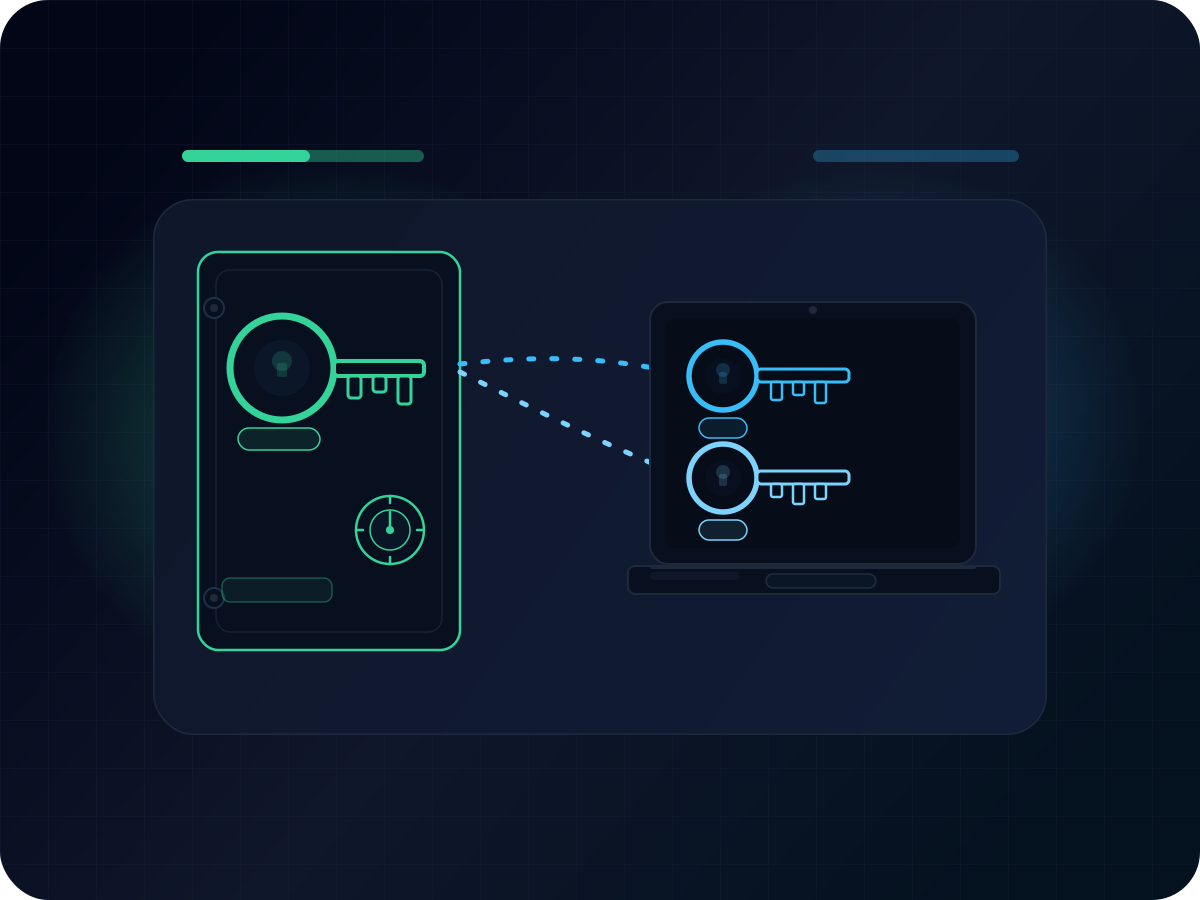
The idea is to split your GPG identity into a master key you keep offline and subkeys you use day-to-day. If your machine is ever compromised, an attacker gets the subkeys — you revoke them, generate new ones, and your identity is intact.
What GPG is actually for
A GPG key pair has two common uses:
- Signing — attaching a cryptographic signature to something (a commit, a message, a package) so others can verify it came from you
- Encryption — encrypting something so only the holder of a specific private key can read it
Creating the master key pair
With GnuPG installed, start with:
gpg --expert --full-generate-key
You will be asked to choose a key type:
Please select what kind of key you want:
   (1) RSA and RSA
   (2) DSA and Elgamal
   (3) DSA (sign only)
   (4) RSA (sign only)
   (7) DSA (set your own capabilities)
   (8) RSA (set your own capabilities)
   (9) ECC (sign and encrypt) *default*
  (10) ECC (sign only)
  (11) ECC (set your own capabilities)
  (13) Existing key
  (14) Existing key from card
  (16) ECC and Kyber
Choose ECC (set your own capabilities) (option 11). RSA was the previous default, but ECC provides equivalent security with much smaller key sizes and faster operations. Neither RSA nor ECC is quantum-resistant, but ECC is the better option for classical threat models and is where the ecosystem has moved. Option 16 (ECC and Kyber) is an experimental post-quantum hybrid, but it lacks broad tooling support and is not recommended for general use yet.
Option 11 lets you control exactly which capabilities the master key has. GPG defaults to Sign and Certify, but the master key should only certify — signing data directly from the master key defeats the purpose of having subkeys. Toggle Sign off:
Possible actions for this ECC key: Sign Certify Authenticate
Current allowed actions: Sign Certify

   (S) Toggle the sign capability
   (A) Toggle the authenticate capability
   (Q) Finished

Your selection? S

Possible actions for this ECC key: Sign Certify Authenticate
Current allowed actions: Certify

   (S) Toggle the sign capability
   (A) Toggle the authenticate capability
   (Q) Finished

Your selection? Q
Enter S to remove the Sign capability, then Q to confirm. The master key will carry [C] only.
You will then be asked to choose a curve:
Please select which elliptic curve you want:
   (1) Curve 25519 *default*
   (2) Curve 448
   (3) NIST P-256
   (4) NIST P-384
   (5) NIST P-521
   (6) Brainpool P-256
   (7) Brainpool P-384
   (8) Brainpool P-512
Choose Curve 25519 (option 1). It uses ed25519 for signing — a well-vetted, modern algorithm with strong performance and wide support.
Next, you will be asked for an expiry:
Please specify how long the key should be valid.
         0 = key does not expire
      <n>  = key expires in n days
      <n>w = key expires in n weeks
      <n>m = key expires in n months
      <n>y = key expires in n years
Key is valid for? (0)
Set an expiry of one to two years. It might seem counterintuitive, but expiry is a safety net, not a limitation. You can extend it any time before it lapses. What you cannot do is un-publish a non-expiring key you have lost access to. An expired key at least communicates that it is no longer active.
After filling in your name, email, and a passphrase, GPG prints the result:
pub   ed25519 2026-03-31 [C] [expires: 2027-03-31]
      E31C074FA2D89B561C4A730F852E1D493BC60A7F
uid                      Adam Brauns <adam@example.com>
You can confirm it appears in your keyring:
gpg --list-secret-keys
sec   ed25519 2026-03-31 [C] [expires: 2027-03-31]
      E31C074FA2D89B561C4A730F852E1D493BC60A7F
uid           [ultimate] Adam Brauns <adam@example.com>
Reading the output
The labels in the output carry meaning worth understanding before you go further.
sec is your secret master key. ssb is a secret subkey. pub and sub are the public counterparts of each. The bracketed letters describe what the key is authorized to do:
| Label | Capability | Notes |
|---|---|---|
C |
Certify | Sign other keys. Only the master key has this. |
S |
Sign | Sign data, commits, and messages. |
E |
Encrypt | Encrypt and decrypt. |
A |
Authenticate | Rarely used; some SSH implementations support GPG auth. |
The master key carries [C] only: it can certify but not sign data directly. Certify is what lets the master key generate subkeys, and it cannot be delegated. Subkeys can sign and encrypt but cannot spawn their own subkeys.
Adding a signing subkey
Open the key for editing:
gpg --edit-key E31C074FA2D89B561C4A730F852E1D493BC60A7F
At the gpg> prompt, type addkey:
Please select what kind of key you want:
   (3) DSA (sign only)
   (4) RSA (sign only)
   (5) Elgamal (encrypt only)
   (6) RSA (encrypt only)
  (10) ECC (sign only)
  (12) ECC (encrypt only)
  (14) Existing key from card
Choose option 10 for an ECC signing subkey.
Please select which elliptic curve you want:
   (1) Curve 25519 *default*
   (4) NIST P-384
   (6) Brainpool P-256
Choose option 1 for elliptic curve.
Set the same expiry as your master key so they stay in sync, and enter your passphrase when prompted.
Once done, the key listing inside the editor should show two keys:
sec  ed25519/95BB0086DDD86937
     created: 2026-03-31  expires: 2027-03-31  usage: C
     trust: ultimate      validity: ultimate
ssb  ed25519/14072A8493246577
     created: 2026-03-31  expires: 2027-03-31  usage: S
[ultimate] (1). Adam Brauns <adam@example.com>
If you also want an encryption subkey, run addkey again and choose option 12 (ECC encrypt only). Select Curve 25519 and set the same expiry. The key listing will then show a third entry with usage: E. Note that even though both subkeys use Curve 25519, GPG generates different algorithms under the hood — ed25519 for signing and cv25519 (X25519) for encryption. That is why the final --list-secret-keys output shows different algorithm labels for each subkey.
Type save and press enter. Your keyring now has a master key for certification and two subkeys — one for encryption, one for signing. That is the complete set you need before moving the master key offline.
Exporting and backing up
Before removing anything from your local machine, export all three components. Adjust the filenames and key ID to match your setup:
gpg --output adam.public.gpg --export E31C074FA2D89B561C4A730F852E1D493BC60A7F
gpg --output adam.secret.gpg --export-secret-key E31C074FA2D89B561C4A730F852E1D493BC60A7F
gpg --output adam.secsub.gpg --export-secret-subkeys E31C074FA2D89B561C4A730F852E1D493BC60A7F
The public key export is what you share with the world — paste it into GitHub, upload it to a keyserver, whatever fits your workflow. The secret key export contains everything and goes to offline storage only. The secret subkeys export is what you will re-import onto your local machine after removing the master.
Before transferring these to your offline storage, you might also want to generate a revocation certificate:
gpg --output adam.revoke.asc --gen-revoke E31C074FA2D89B561C4A730F852E1D493BC60A7F
A revocation certificate lets you publicly invalidate the key even if you no longer have access to it. Store it alongside your other exports. If you ever lose both your machine and your backup, this is your last resort.
Copy all the files to a USB drive or external hard drive that you keep somewhere physically secure. These are your only copies of the master secret key once the next step is done, so the backup matters.
Removing the master key from your local machine
This step is what most guides skip. Delete the entire secret key from your local keyring — this removes both the master key and the subkeys:
gpg --delete-secret-keys E31C074FA2D89B561C4A730F852E1D493BC60A7F
GPG will ask you to confirm. Now your local keyring has no private keys at all. Re-import just the subkeys:
gpg --import adam.secsub.gpg
Verify the result:
gpg --list-secret-keys
sec#  ed25519 2026-03-31 [C] [expires: 2027-03-31]
      E31C074FA2D89B561C4A730F852E1D493BC60A7F
uid           [ultimate] Adam Brauns <adam@example.com>
ssb   ed25519 2026-03-31 [S] [expires: 2027-03-31]
The # after sec is the confirmation you are looking for. It means GPG knows about the master key's public component and fingerprint but does not have the private key on this machine. The two ssb entries are fully present and ready to use for signing and encrypting.
Delete the exported files from your local machine. They belong on the offline backup and nowhere else.
Day-to-day use
For most tasks, the subkey setup is invisible. Signing a git commit, encrypting a file, or decrypting a message all work exactly as they would with the master key present.
The one thing you cannot do without re-importing the master key is change the key itself: adding or revoking subkeys, updating expiry dates, or certifying someone else's key. For any of those operations, temporarily import from your backup:
gpg --import /path/to/backup/adam.secret.gpg
Make your changes, then remove the master key again and re-import just the subkeys. Keeping that cycle explicit is the whole point — the master key touches the machine only when it has to.
When your keys approach expiry, connect the backup, re-import, extend the expiry date on both the master and the subkeys, and put it back offline. Setting a reminder a few weeks before expiry is worth doing so you are not scrambling at the last minute.
What you get from this
The setup limits the consequence of a worst-case scenario. If your machine is stolen or your keyring is compromised, an attacker has your subkeys. That means they can sign things as you and decrypt things addressed to you — which is bad, but recoverable. You revoke the subkeys with the master, generate new ones, and your long-term GPG identity is intact.
Without subkeys, the master key being on your laptop means losing the device is equivalent to losing your identity. Every signature you have ever made, every trust relationship in the web of trust — those are all associated with that key. Rebuilding from scratch means losing all of it.
The subkey model is not exotic or complicated once it is set up. It is just keeping the thing that matters most somewhere that is not your everyday machine.