
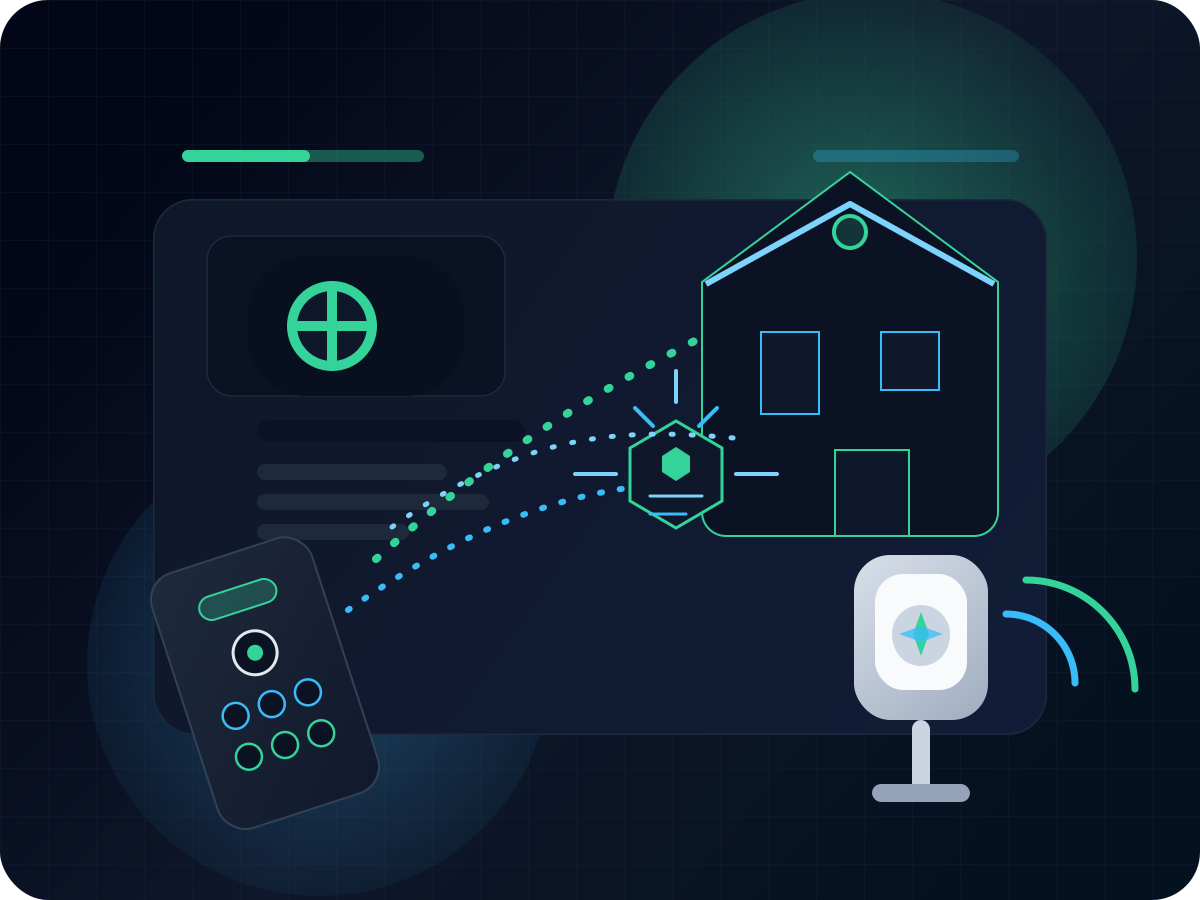
Making "Dumb" Devices Smart with an IR Blaster and Home Assistant
March 8, 20269 min read

Adam Brauns
I originally went down this path because I wanted a better way to control the tower fans around my house. There are plenty of Wi-Fi-enabled fans on the market, but paying more just to get app control felt unnecessary when I already owned perfectly good hardware with a remote.
That was my immediate use case, but the pattern is much broader than tower fans. If a device already responds to an infrared remote, it is often a good candidate for this kind of retrofit. TVs, sound bars, air conditioners, fireplaces, LED controllers, and a lot of other "dumb" appliances can be pulled into Home Assistant without replacing them. With the right hardware, some RF-based devices can too.
I used BroadLink because Home Assistant has a straightforward Broadlink integration, but the general idea applies to any IR blaster Home Assistant can control reliably.
Why this approach made sense
The key insight is that many so-called "dumb" devices are not actually dumb at all. They already accept remote commands over IR, and sometimes RF. That means you do not necessarily need new hardware, new motors, or a cloud-connected replacement. You just need a bridge that can replay the same commands from Home Assistant.
An IR or RF blaster is a good middle ground for exactly that kind of problem:
- Keep the hardware you already own
- Avoid the cost of replacing multiple devices
- Add scheduling, scenes, and automations through Home Assistant
- Keep control local once the commands are learned in Home Assistant
For me, that was much more appealing than rebuying working devices just to get app control.
Where this works well
This approach is especially useful for devices that already have simple remotes and do not need rich two-way state reporting. A few common examples:
- TVs, projectors, and sound bars
- Portable AC units and mini-split remotes
- Tower fans and space heaters with IR remotes
- Electric fireplaces or LED light controllers
- Shades, switches, and other RF devices if you choose hardware that supports RF
The less a device depends on reporting its actual state back to you, the better this pattern tends to work.
RM4 mini vs RM4 Pro
BroadLink has a few variations in this family, but the decision most people care about is the difference between the RM4 mini and the RM4 Pro.
| Device | Best For | Protocols | When It Makes Sense |
|---|---|---|---|
| RM4 mini | IR-only appliances like TVs, fans, AC units, and media gear | IR | Use this when every device you want to control already uses a standard IR remote. It is the simpler and usually cheaper option. |
| RM4 Pro | Mixed IR and RF setups like shades, projector screens, switches, and some blinds | IR + RF | Use this when at least one of your target devices uses RF, or when you want one bridge that can cover more than just infrared gear. |
I used the RM4 mini because my tower fans were standard IR devices. If I were trying to control a mix of IR devices and RF-controlled shades or switches, I would start with the RM4 Pro instead.
One important caveat with the RM4 Pro: BroadLink positions it for RF devices, but it does not support rolling code remotes. In practice, that means it can be a good fit for some RF devices, but not everything with an RF remote is going to be compatible.
What I used
- A BroadLink RM4 mini for my setup
- The BroadLink RM4 Pro as the better option if you need RF support
- Home Assistant's Broadlink integration
- The original remotes for the devices I wanted to control
- The BroadLink mobile app for initial setup
The official Home Assistant docs note that the manufacturer app is required to get new BroadLink devices onto the network first, which matched my setup experience.
How the setup works
The BroadLink device learns the same commands your physical remote sends. Home Assistant then stores those commands by device and command name, and later replays them through the BroadLink remote using remote.send_command.
That gives you a nice upgrade path for older appliances:
- Learn each device's important commands once
- Wrap those commands in scripts, scenes, or automations
- Trigger them from dashboards, schedules, or voice assistants connected to Home Assistant
The important limitation is that IR is one-way, and many RF remotes are similar from Home Assistant's point of view. Home Assistant can send commands, but it usually does not know the true state of the device unless you model that state yourself with helpers or careful automations. For things like routines, scenes, and simple control surfaces, that tradeoff is often fine.
Setup steps
Here is the setup flow I would recommend for most BroadLink installs.
Initial device setup
- Install the BroadLink mobile app and follow its setup flow to get the RM4 device connected to your Wi-Fi network.
- Open the device settings in the BroadLink app and make sure
Lock deviceis disabled so Home Assistant can communicate with it properly. - Give the BroadLink device a stable IP address, ideally through a DHCP reservation on your router, so Home Assistant can always find it reliably.
- If the device is not auto-discovered, enter the device's IP address manually during setup.
Add it to Home Assistant and learn commands
- Add the BroadLink integration in Home Assistant and complete the setup prompts.
- Open
Developer Tools->Actions. - Select the
remote.learn_commandaction. - Fill in the action details:
Target: Select the BroadLink remote entityDevice: Enter a stable name for the device you are teaching, such astower_fanCommand: Enter the specific button name you want to learn, such asPower
- Click
Perform Actionto put the BroadLink device into learning mode. - Point the original remote at the BroadLink device and press the matching button.
- Repeat the process for every command you want Home Assistant to be able to replay later.
This is also the point where naming matters. I found it easiest to pick a stable device name once and then keep command names human-readable.
My tower fan example
Tower fans were the thing that pushed me to set this up in the first place, so here is the concrete example from my house. I grouped everything under the tower_fan device name and taught Home Assistant the following commands:
| Entity Name | Command |
|---|---|
| tower_fan | Power |
| tower_fan | Power Up |
| tower_fan | Power Down |
| tower_fan | Rotate |
| tower_fan | Mode |
| tower_fan | Timer |
| tower_fan | Silence |
Once these are learned, Home Assistant can call them at any time with remote.send_command.
Example Home Assistant scripts
After learning the commands, I wrapped a few of them in scripts so they were easier to reuse from automations and dashboards. This example is fan-specific, but the same pattern works for any supported device.
---
script:
  tower_fan_power_toggle:
    alias: Tower Fan Power Toggle
    sequence:
      - action: remote.send_command
        target:
          entity_id: remote.office_ir
        data:
          device: tower_fan
          command: Power

  tower_fan_rotate:
    alias: Tower Fan Rotate
    sequence:
      - action: remote.send_command
        target:
          entity_id: remote.office_ir
        data:
          device: tower_fan
          command: Rotate

  tower_fan_quiet_mode:
    alias: Tower Fan Quiet Mode
    sequence:
      - action: remote.send_command
        target:
          entity_id: remote.office_ir
        data:
          device: tower_fan
          command: Silence
From there, you can drop those scripts onto a dashboard, expose them to voice assistants, or call them from automations.
A simple automation example
One nice use case is bundling commands into a routine. Here is a simple example that kicks my fans into a quieter mode at night:
---
automation:
  - alias: Tower Fan Quiet Down At Night
    triggers:
      - trigger: time
        at: "21:30:00"
    actions:
      - action: script.tower_fan_quiet_mode
      - delay: "00:00:01"
      - action: script.tower_fan_rotate
If your fan has a single power toggle instead of separate on and off commands, keep that in mind when building automations. Toggle-based IR devices are easy to control, but they are not perfectly state-aware unless you add your own tracking.
When this approach makes the most sense
The biggest win is that it makes existing hardware more useful without forcing a full replacement cycle. If you already own a device that works well and it has a remote, this is often one of the cheapest ways to pull it into a smart home.
This approach is especially good when:
- Centralized control from Home Assistant
- You want schedules, scenes, and routines
- The device is already remote-controlled and otherwise works fine
- You want to avoid paying a premium for Wi-Fi versions of things you already own
It makes less sense when the device depends heavily on accurate state tracking, uses unsupported RF behavior like rolling codes, or needs bi-directional feedback to be reliable.
Final thoughts
The useful takeaway here is not really about tower fans. It is that a lot of remote-controlled devices can be brought into Home Assistant without replacing hardware that already works.
If the device uses IR, the RM4 mini is usually the straightforward choice. If you need compatible RF support as well, the RM4 Pro is the better option.
If you are happy with the physical device and just want it to participate in automations, scenes, and dashboards, an IR or RF bridge is often the cheapest upgrade path available. In many cases, you do not need a new "smart" version of the device. You just need a way to teach Home Assistant the remote commands it already understands.